
Westminster Drug Project Adopts Wizards 3CX Hosted Voice Over Internet Protocol (VoIP)

WDP are a charity providing drug and alcohol treatment and recovery services in London, the South East and East of England.
Read More 01
Wizards Ltd. Business Class VoIP and Internet Connectivity.
Wizards Ltd. Business Class VoIP and Internet Connectivity.

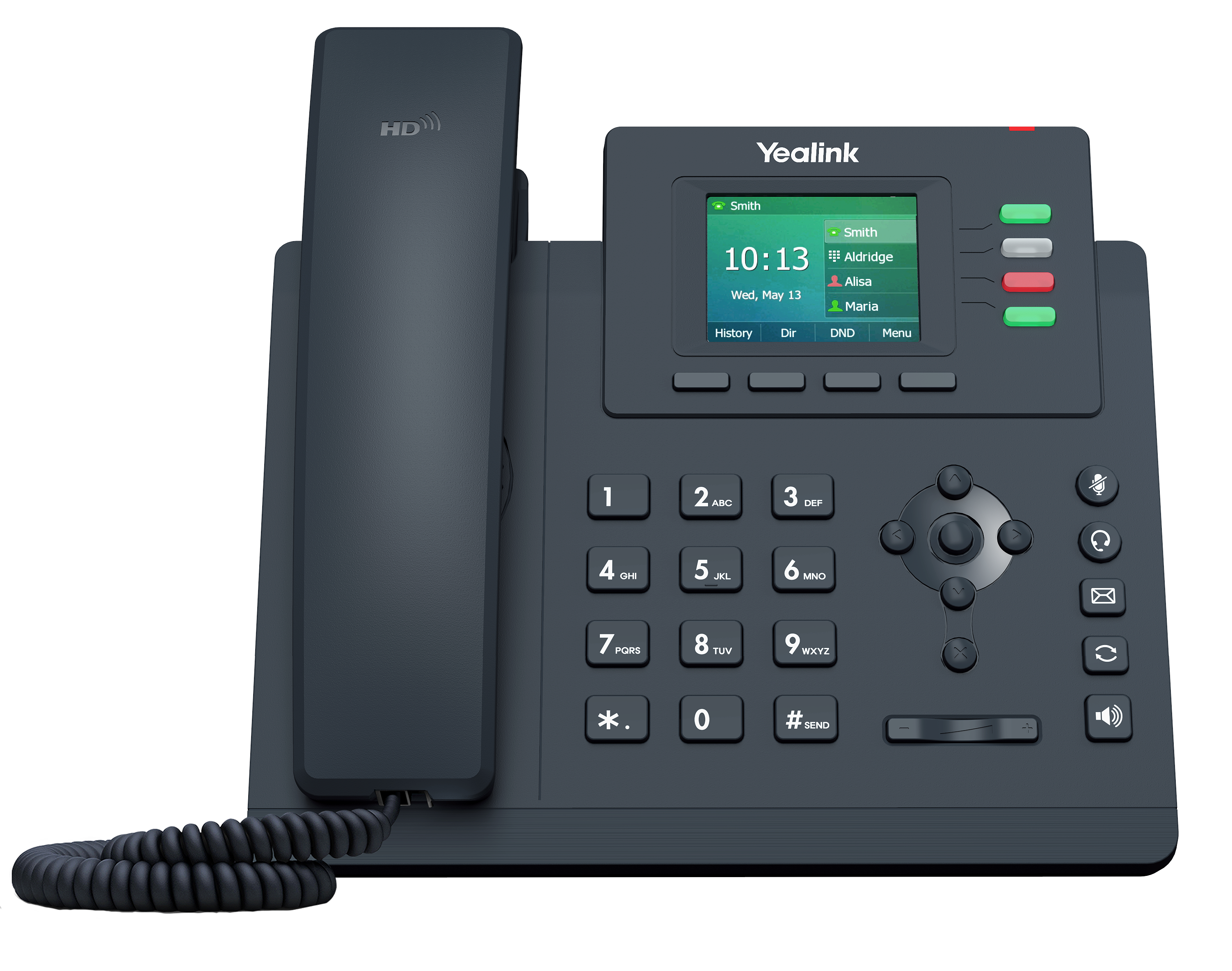

Based in Buckinghamshire and one of the founding companies in the UK Internet industry, Wizards were started in 1993 and have been delivering Business Class Internet Connectivity, Telephony and VoIP Services since. With over 2 decades of trading history Wizards now offer an extended portfolio of Office Phone Systems and Small Business Phone System options. Unlike many of our more junior competitors Wizards have never heavily invested in the automation tools designed to drive costs down in the business concentrating instead on the personal service aspects of delivering our expertise. As well as many small customers Wizards retain a small number of major clients and across all our clients our personal service as the techies you can talk to delivers genuine value.







Wizards have a wide portfolio of clients ranging from Borough Councils and large third sector organisations down the many small businesses and above all we retain the personal touch with all our clients being available and easy to deal with.



WDP are a charity providing drug and alcohol treatment and recovery services in London, the South East and East of England.
Read More 01
Established in 1975 by David and Kerry Ruddick, Summertown Clinic is now run by James Ruddick who, like his parents, is a qualified and practicing osteopath.
Read More 02
Spun out of Oxford University, Oxford Robotics Institute (ORI) 4 years ago, Oxbotica https://www.oxbotica.ai/ write software for self driving cars.
Read More 03
Like all local authorities, Gosport Borough Council is under pressure to deliver improved services with fewer resources and reduced funding.
Read More 04